Barcode Scanning
The barcode module detects machine readable codes (barcodes and QR codes) on both platforms, like VisionCamera’s react-native-vision-camera-barcode-scanner. It offers a CodeScanner view, a barcode scanner CameraOutput, a BarcodeScanner to use in a Frame Processor, and still image scanning.
dependencies {
    implementation("me.nathanfallet.visioncamera:barcode:0.1.0")
    // For the Compose helpers (CodeScanner, rememberBarcodeScanner, rememberBarcodeScannerOutput):
    implementation("me.nathanfallet.visioncamera:barcode-compose:0.1.0")
}
On Android, codes are scanned with ML Kit, like in VisionCamera. On iOS, they are scanned with Apple’s Vision framework, which is built into the system: there is nothing to add to your app (no pod, no model), and the results are mapped to match ML Kit’s (formats, value types, display values and coordinates). Test scanning on a device: some iOS Simulators detect no codes with Vision.
Unlike the Object Output (which is iOS-only), the barcode scanner works on both iOS and Android.
Using the barcode scanner
The CodeScanner view
CodeScanner is a Camera view that scans codes with the default back camera:
CodeScanner(
    isActive = isActive,
    barcodeFormats = listOf(TargetBarcodeFormat.ALL_FORMATS),
    onBarcodeScanned = { barcodes -> println("Scanned ${barcodes.size} barcodes!") },
    onError = { error -> println("Error scanning barcodes: $error") },
    modifier = Modifier.fillMaxSize(),
)
A camera output
For more control over the Camera or the CameraSession, create a barcode scanner CameraOutput and attach it like any other output:
val barcodeOutput = rememberBarcodeScannerOutput(
    barcodeFormats = listOf(TargetBarcodeFormat.ALL_FORMATS),
    onBarcodeScanned = { barcodes -> println("Scanned ${barcodes.size} barcodes!") },
    onError = { error -> println("Failed to scan barcodes! $error") },
)
Camera(device = TargetCameraPosition.BACK, isActive = true, outputs = listOf(previewOutput, barcodeOutput))
Without Compose, create it with createBarcodeScannerOutput(BarcodeScannerOutputOptions(...)), and dispose() it when you no longer need it.
outputResolution chooses the size of the scanned buffers: BarcodeScannerOutputResolution.PREVIEW (the default) prefers preview-sized buffers for lower latency, FULL the largest available buffers for small or dense codes.
In a Frame Processor
For full control, scan the Frames of a frame output yourself with a BarcodeScanner:
val barcodeScanner = rememberBarcodeScanner(barcodeFormats = listOf(TargetBarcodeFormat.ALL_FORMATS))
val frameOutput = rememberFrameOutput(FrameOutputOptions(pixelFormat = TargetVideoPixelFormat.YUV)) { frame ->
    frame.use {
        val barcodes = barcodeScanner.scanCodes(frame)
        println("Detected ${barcodes.size} barcodes!")
    }
}
scanCodes runs synchronously on the frame’s thread. Use scanCodesAsync(frame) to suspend instead. Without Compose, create the scanner with createBarcodeScanner(BarcodeScannerOptions(...)).
Still images
To scan a still Image (from photo.toImage(), Bitmap.toImage() on Android or UIImage.toImage() on iOS), use scanCodesInImageAsync:
createBarcodeScanner(BarcodeScannerOptions(listOf(TargetBarcodeFormat.ALL_FORMATS))).use { scanner ->
    val barcodes = scanner.scanCodesInImageAsync(image)
    println("Detected ${barcodes.size} barcodes!")
}
Configuring barcode formats
The examples above detect all formats. To improve performance, narrow barcodeFormats down to the formats you need, for example TargetBarcodeFormat.CODE_128, a common barcode format, or TargetBarcodeFormat.QR_CODE for square QR codes.
A barcode
Every Barcode has:
- its
format(aBarcodeFormat), and itsvalueType(URL, Wi-Fi, phone, contact info…). - its
rawValueandrawBytes, and a human-friendlydisplayValue(e.g. the network name of a Wi-Fi code). - its
boundingBoxand its fourcornerPoints(top-left, top-right, bottom-right, bottom-left).
Codes scanned in a Frame (by the output or scanCodes) have their coordinates in the frame’s buffer coordinate system. To draw them over the preview, convert them to camera coordinates with frame.convertFramePointToCameraPoint, then to view coordinates with the preview’s convertCameraPointToViewPoint. Codes scanned in an Image have their coordinates in the upright image, in pixels.
Test it
Try scanning this example Code 128 barcode:
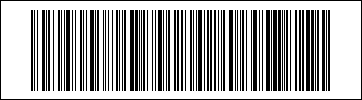
Image from the VisionCamera documentation, MIT licence.